Move your identity to a new PDS
Your PDS is the server that hosts your account. If it goes offline for good, shuts down, or starts working against you, you can point your identity at a new one, as long as you hold a recovery key that ranks above it.
You’ll need
- A recovery key above your PDS, from Add recovery keys with two YubiKeys or Other ways to add recovery keys.
- An account ready on your new PDS. [Link to where to find a PDS.]
- Your account’s data already imported to the new PDS. PLC Keeper won’t move your identity until it’s there. [link to the data restore steps]
-
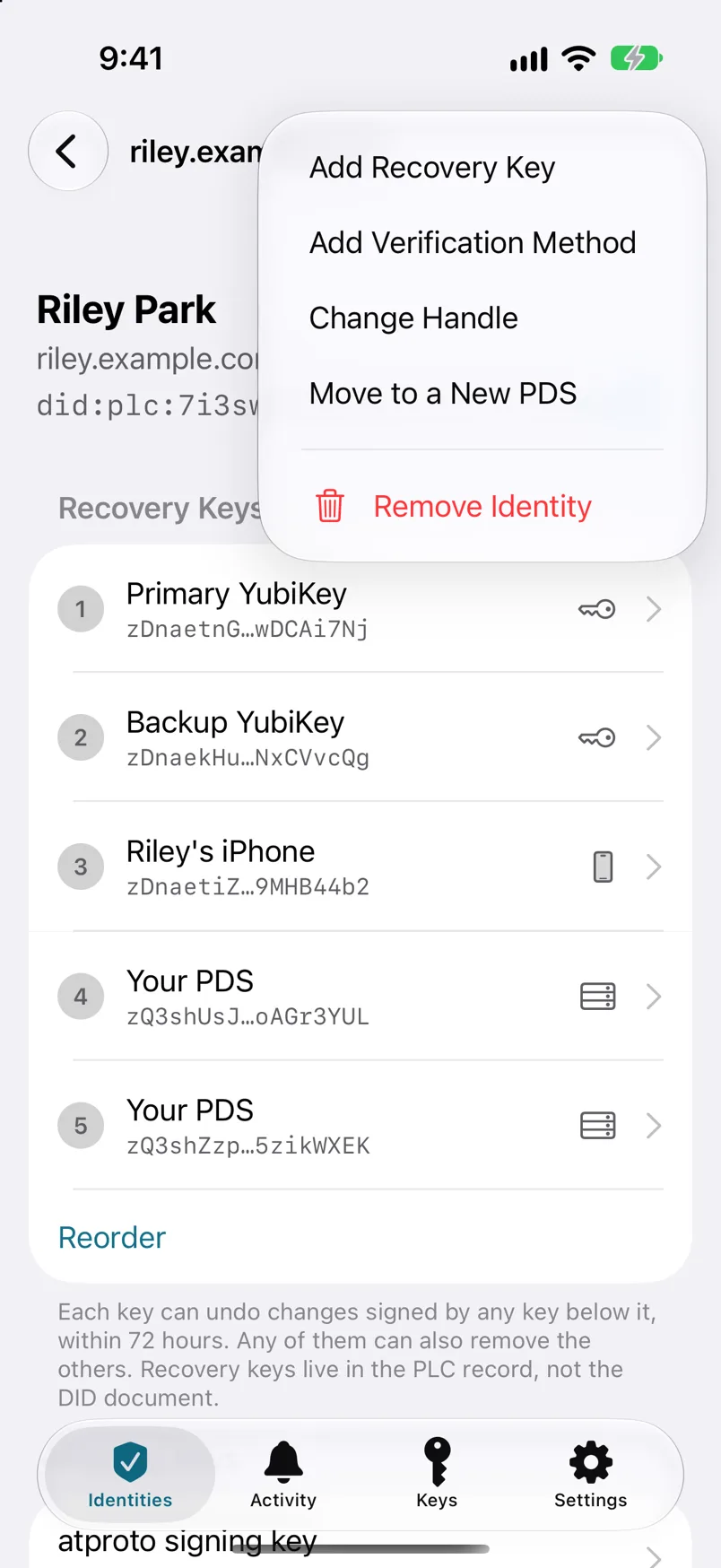
Step 1: Open your identity, tap ⋯ and choose Move to a New PDS.
-
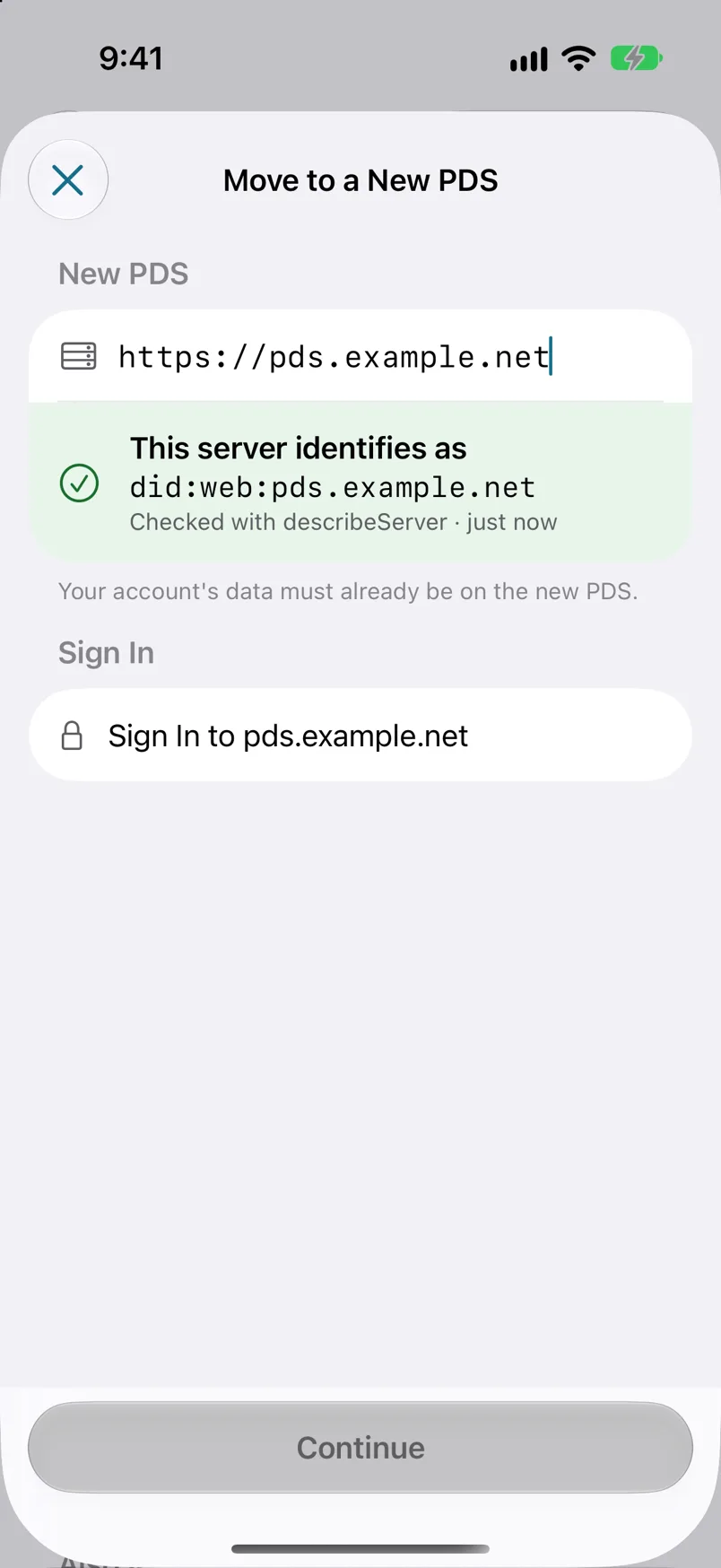
Step 2: Enter the address of your new PDS.
It looks like https://pds.example.net. Your new provider will tell you what it is. PLC Keeper checks that the server answers as a PDS.
-
Step 3: Sign in to the new PDS and review the change.
Tap the Sign In button that names your new PDS, and sign in with your password for your account there. PLC Keeper checks that your account’s data is already there, then shows what changes: the PDS address, the signing key and your recovery keys. Check that the address is exactly the one your new provider gave you, then tap Continue and review the change.
-
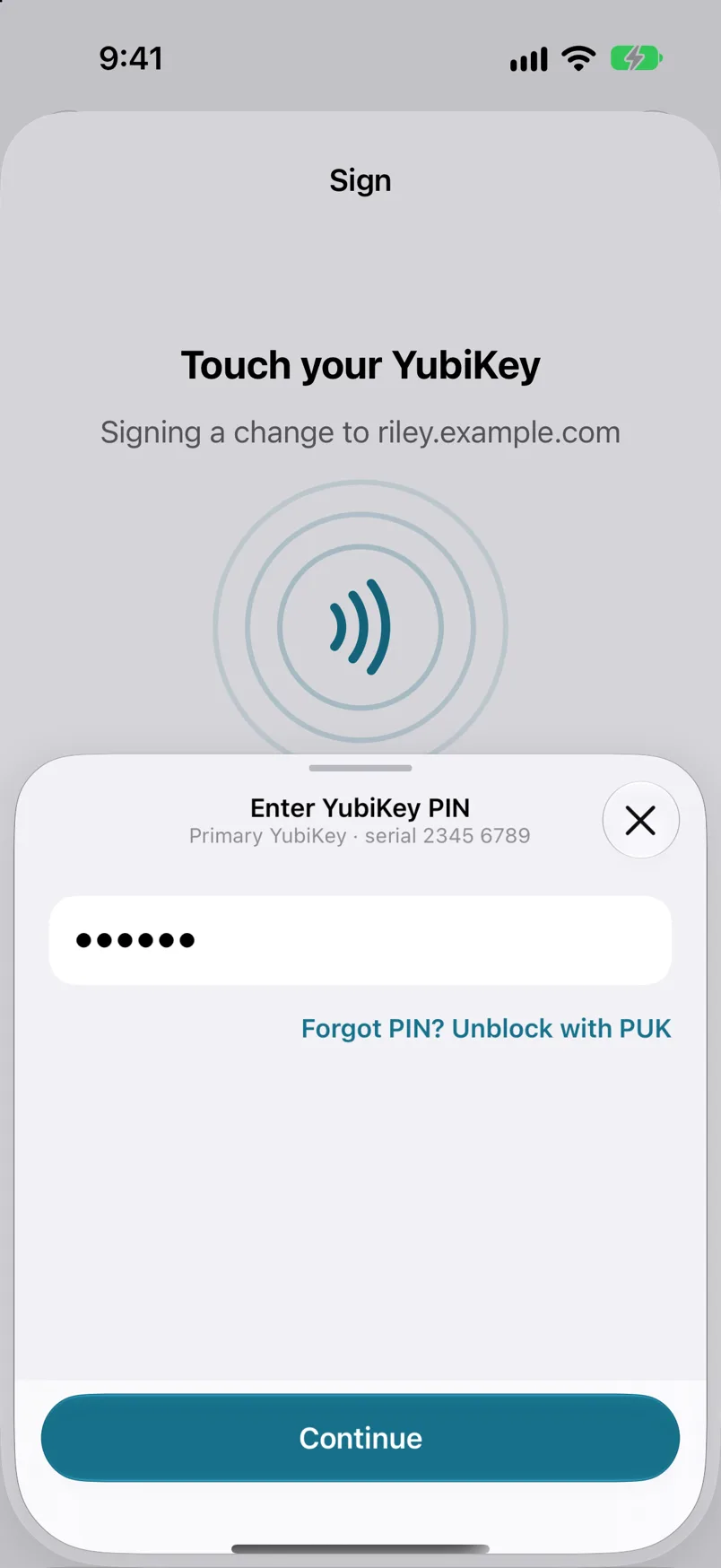
Step 4: Sign with your recovery key.
Choose the recovery key to sign with and tap Sign. For a YubiKey, enter its PIN, then connect the key and touch it. Your old PDS isn’t needed for this.
-
Step 5: Check your identity.
The identity screen now shows your new PDS. If the new PDS reports your account as inactive, tap Activate Account when PLC Keeper confirms the change.
After the move
Your identity now points to the new PDS, which already holds your posts, follows, and other data. Keep a recent backup of your repository, so you can move again if you ever need to.