Add an identity
Your atproto identity is the record that says who you are and where your account lives. Adding it to PLC Keeper lets you see that record, check that it hasn’t been tampered with, and protect it.
You’ll need
PLC Keeper on your iPhone or iPad, and your handle, the name people see on Bluesky, like alice.bsky.social.
-
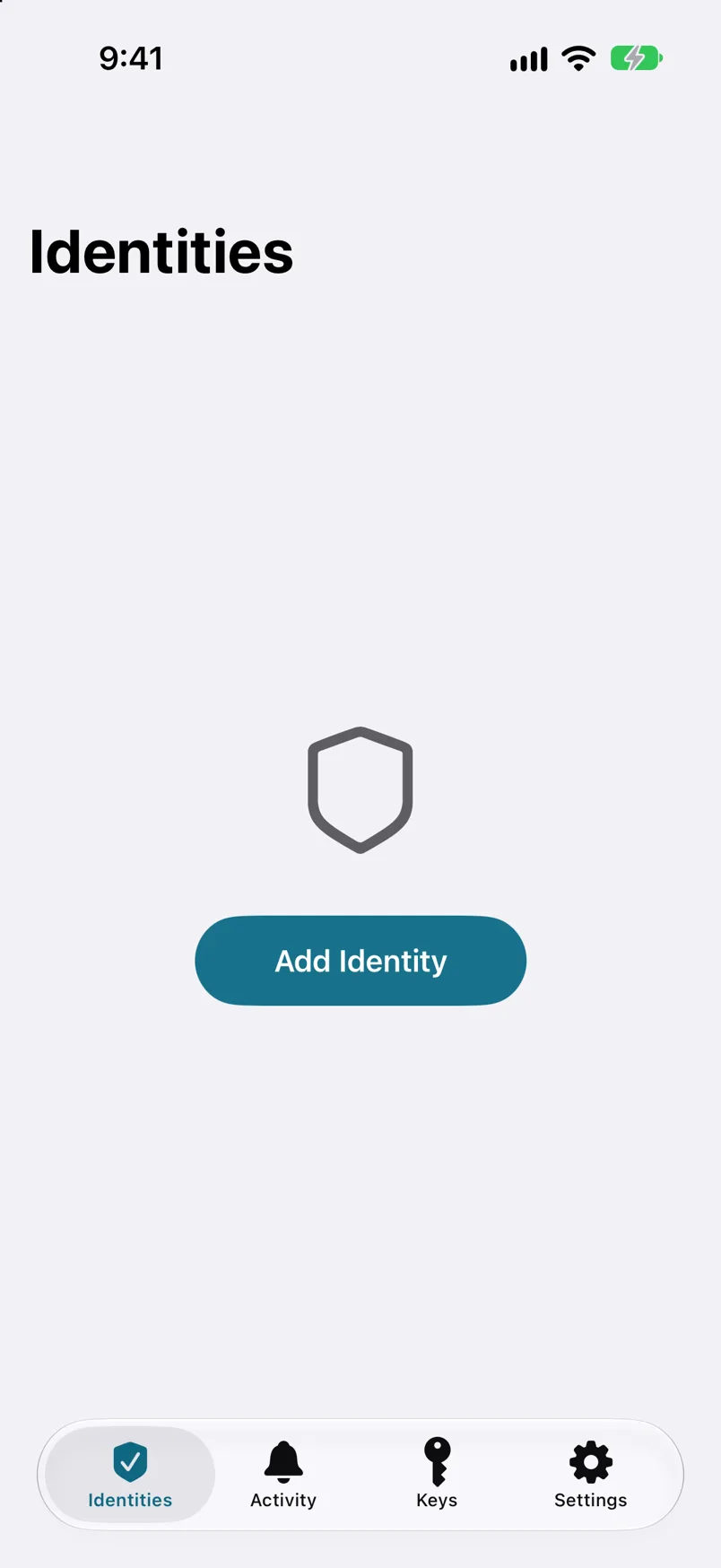
Step 1: Open the Identities tab and tap Add Identity.
If this is your first identity, the button is in the middle of the screen. Otherwise it’s below your list of identities.
-
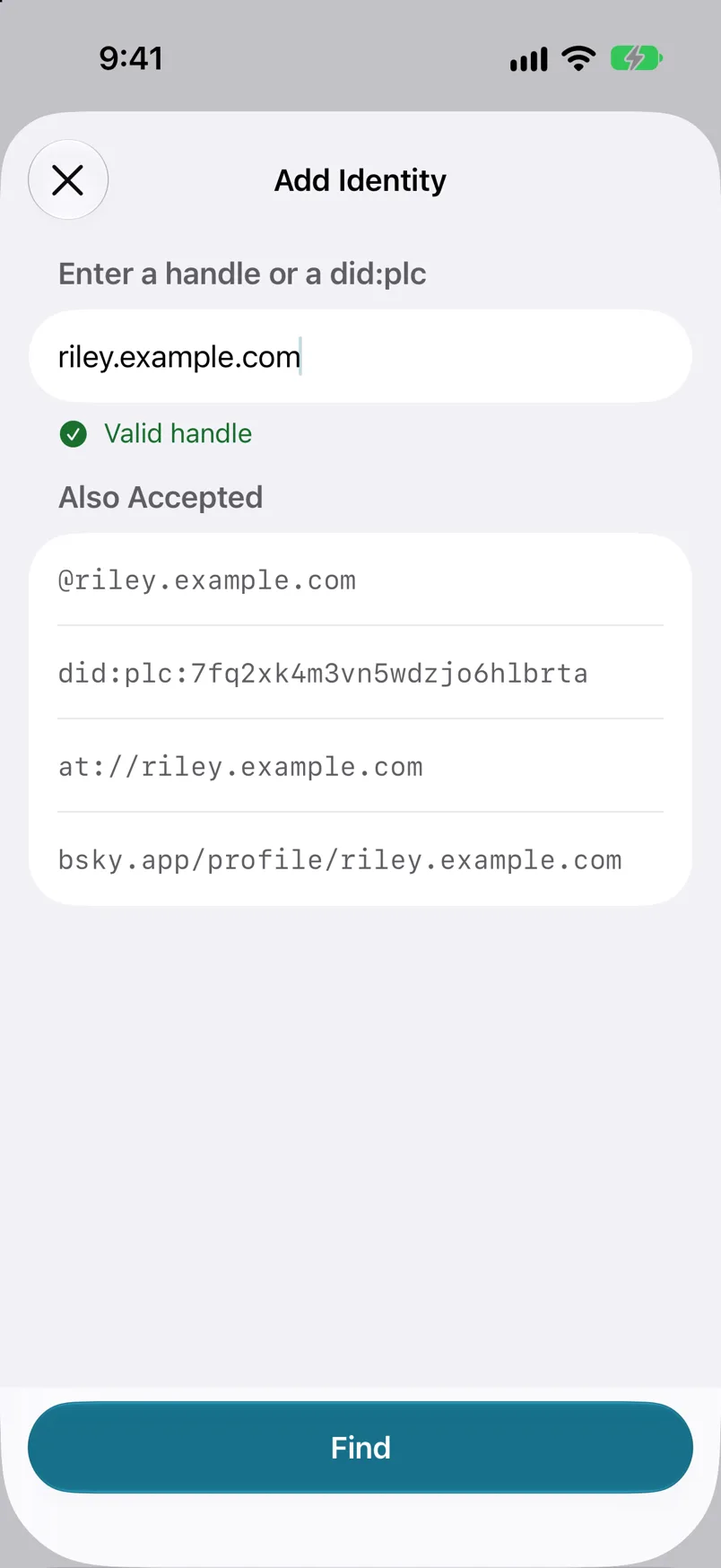
Step 2: Enter your handle and tap Find.
Type your handle without the @. PLC Keeper also accepts a DID if you have one, but your handle is all most people need.
-
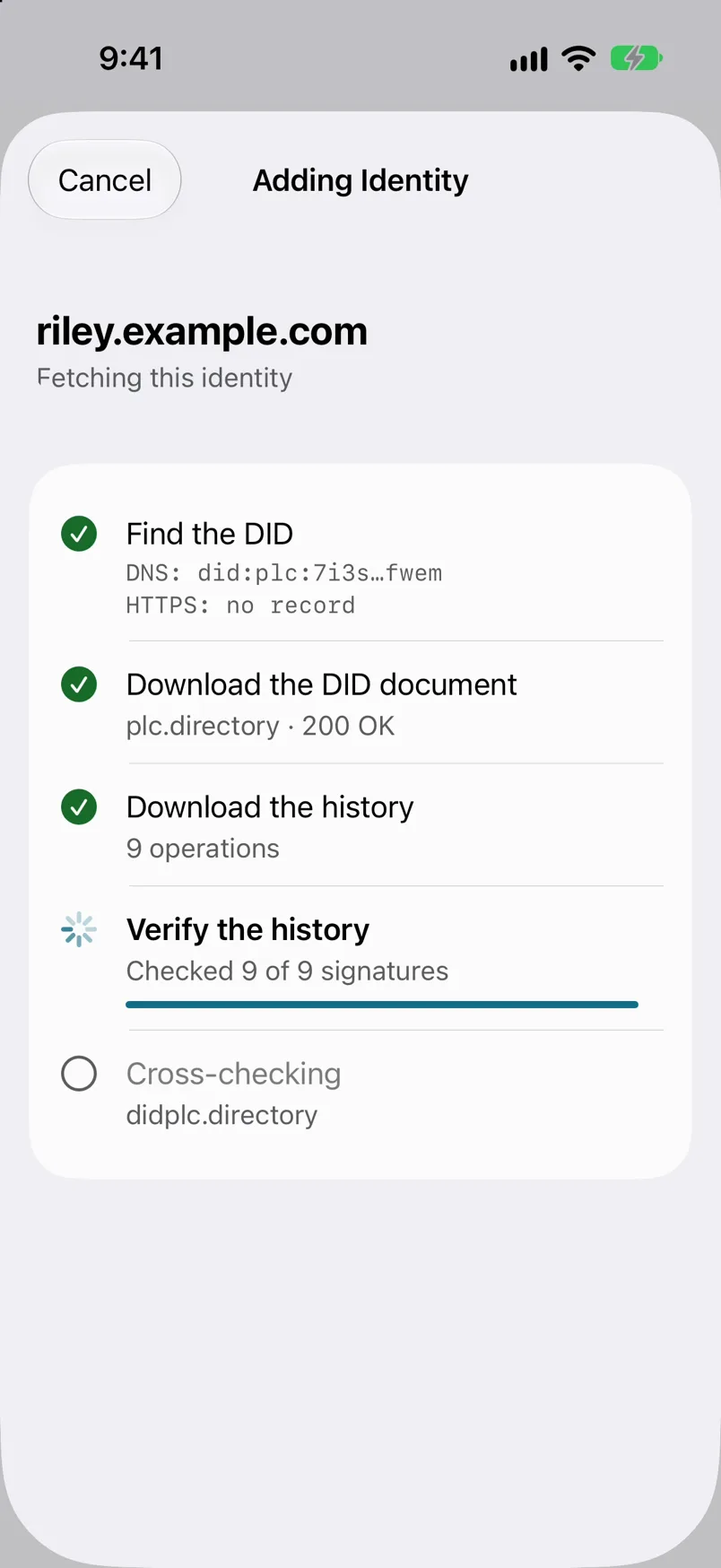
Step 3: Let PLC Keeper check your identity.
PLC Keeper finds your DID, downloads your identity’s full history and checks every change ever made to it, right on your device. This takes a few seconds.
-
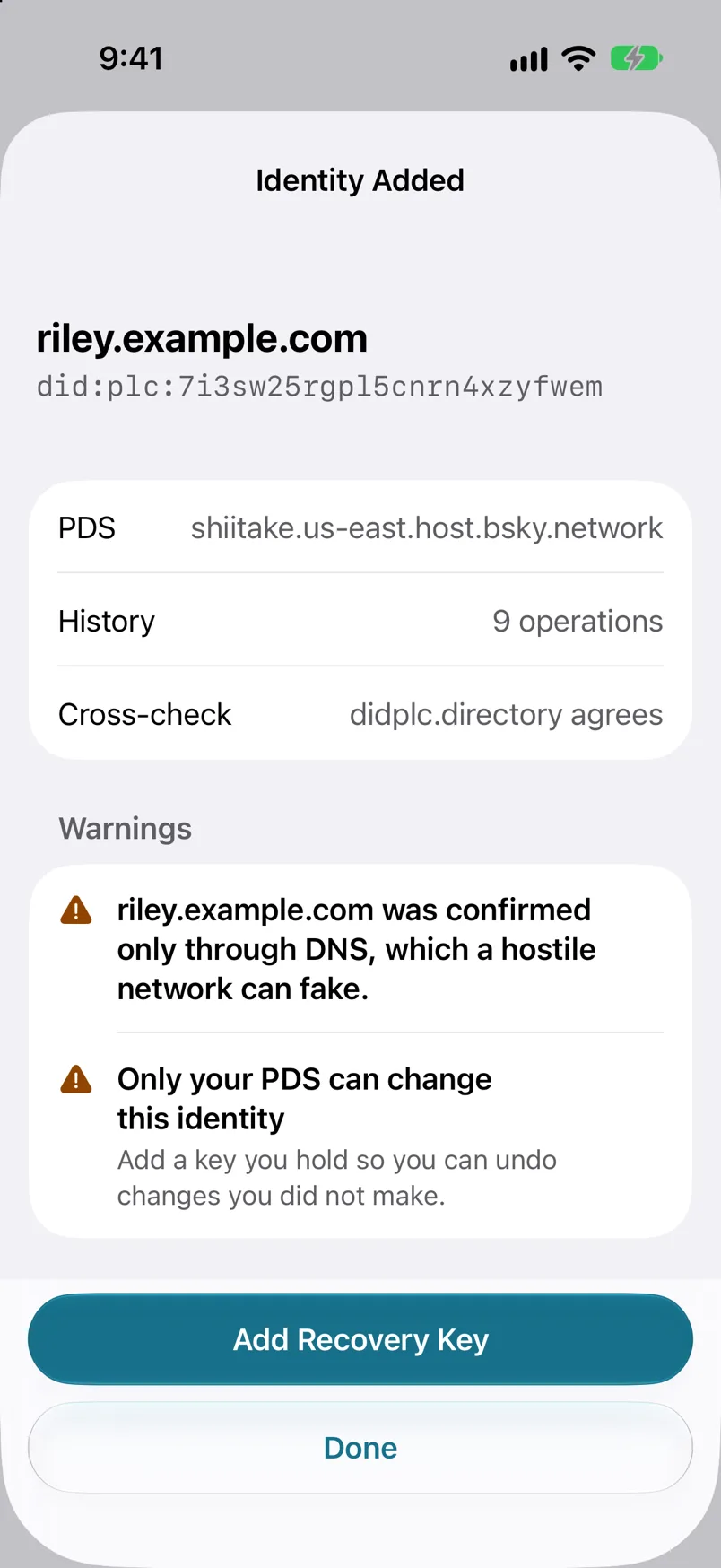
Step 4: Check what PLC Keeper found.
You’ll see your DID, the address of your PDS (the server that hosts your account), how many operations the history holds, and whether a second directory agrees. Make sure the handle is yours. You’ll probably also see a warning that only your PDS can change this identity. That’s normal for a new identity, and the next guide fixes it.
-
Step 5: Tap Done.
PLC Keeper opens your identity. On the Identities tab it’s listed with a green check, which means everything in its history adds up.
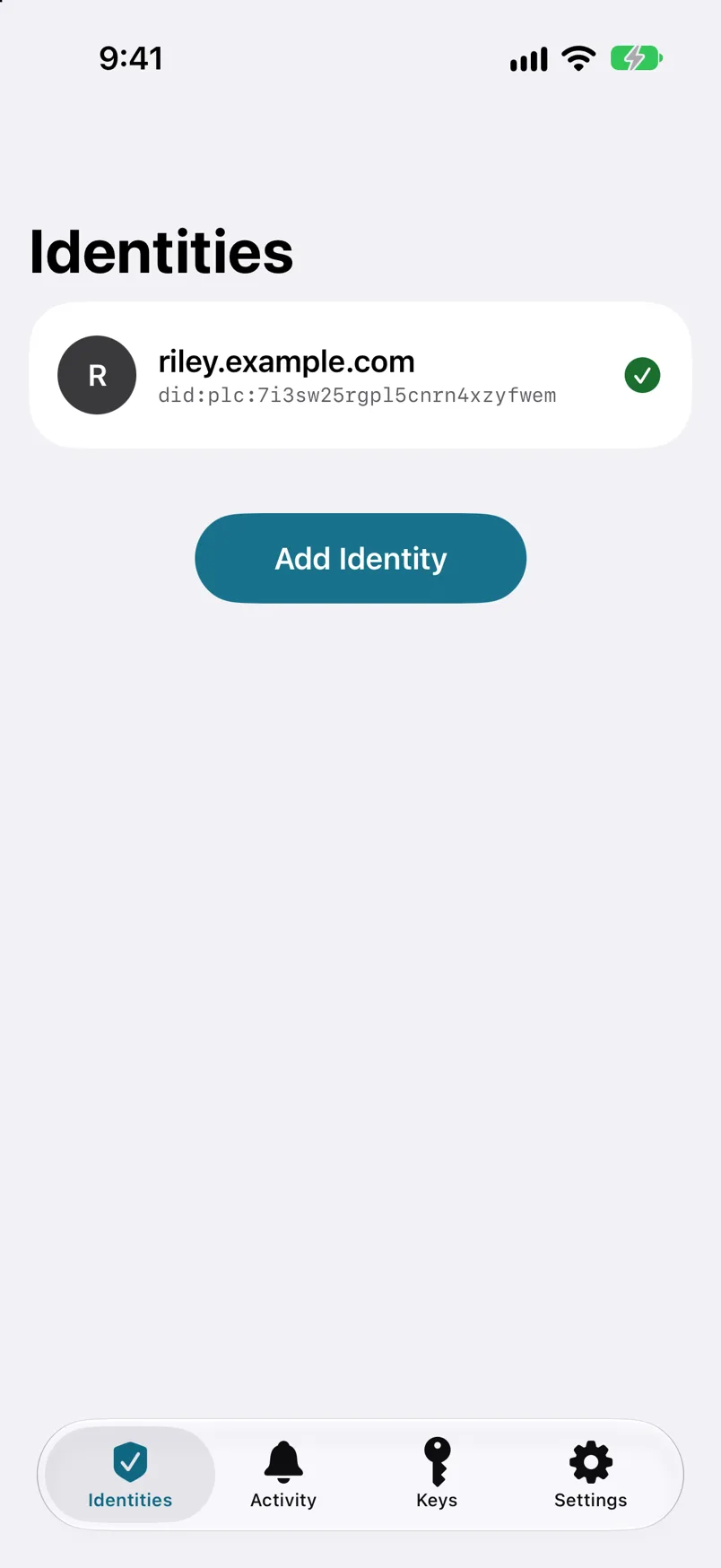
It worked if
Your identity is listed on the Identities tab with a green check.