Other ways to add recovery keys
A YubiKey is the strongest option, but it isn’t the only one. Pick the method that fits how you live, and if you can, add two so you always have a backup.
You’ll need
An identity already in PLC Keeper (see Add an identity).
| Method | Where the key lives | If you lose your phone |
|---|---|---|
| On This iPhone | Inside this iPhone or iPad’s Secure Enclave; it can never leave the device | The key is gone with the device, so pair it with a second method |
| Synced Key | In iCloud Keychain, end-to-end encrypted, on the devices signed in to your Apple Account | Still on your other devices, and on a new one once you sign in to your Apple Account |
| Paper Key | 24 words, written down or printed, stored somewhere safe | Unaffected; you type it back in when you need it |
| Import a Key | A key you already made with another tool, such as goat | Wherever you keep it today |
Every method follows the same steps as the YubiKey guide: open your identity, tap Add Recovery Key, choose the method, create and name the key, review the change, sign in to your PDS, and enter the code from your email.
-
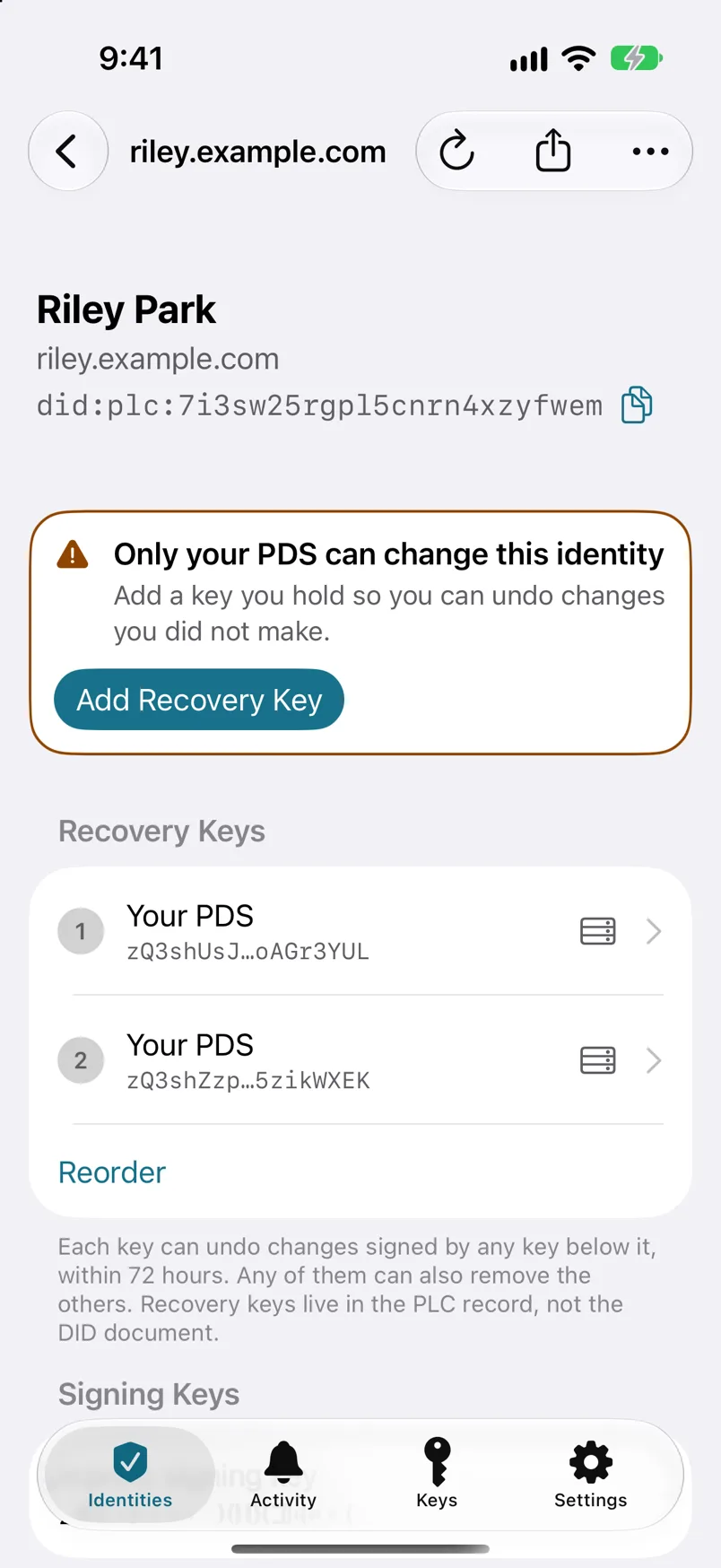
Step 1: Open your identity and tap Add Recovery Key.
You’ll find it on the identity’s screen, in the note that only your PDS can change this identity.
-
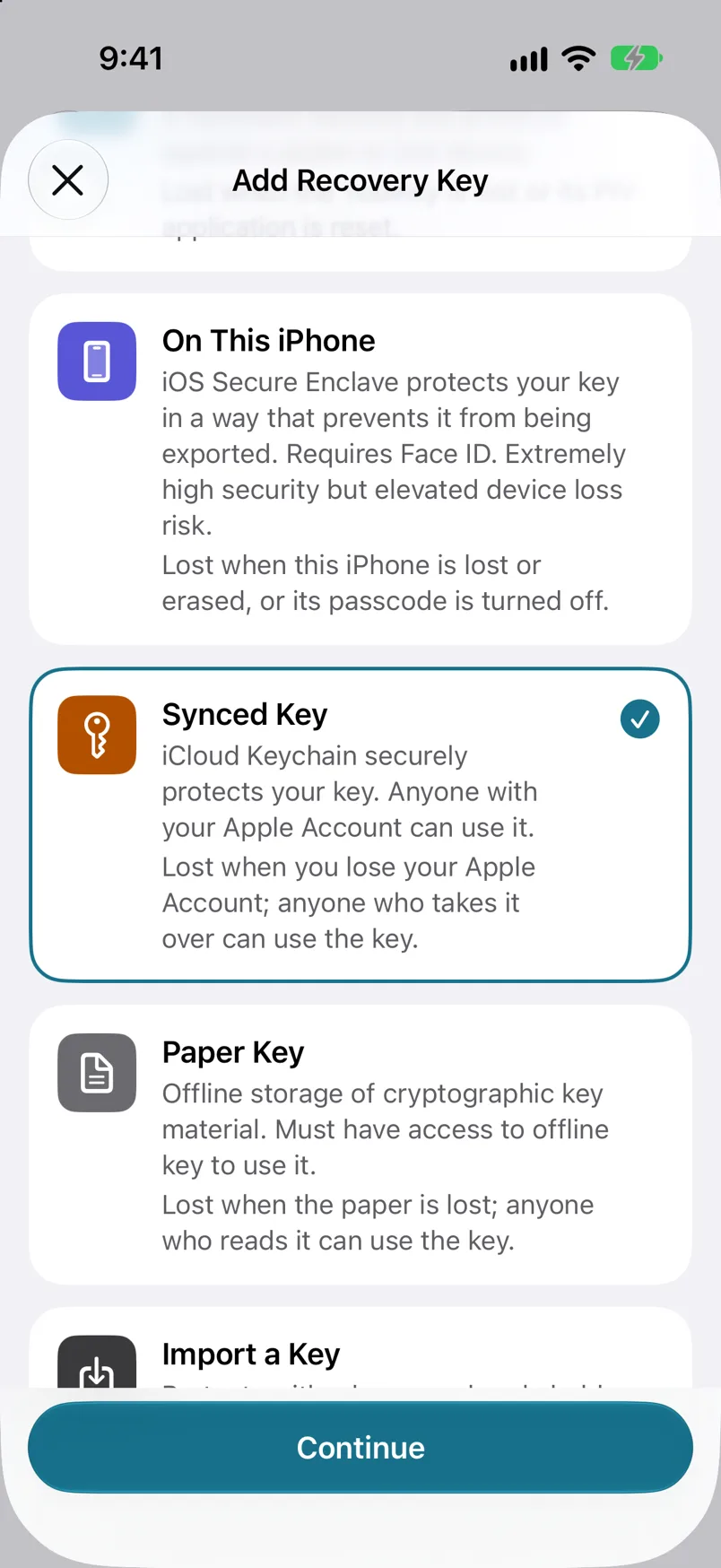
Step 2: Choose the method.
When PLC Keeper asks whether you have a YubiKey, tap Choose Another Method (or No, Use a Paper Key for a paper key). Choose On This iPhone, Synced Key, Paper Key, or Import a Key, then tap Continue.
-
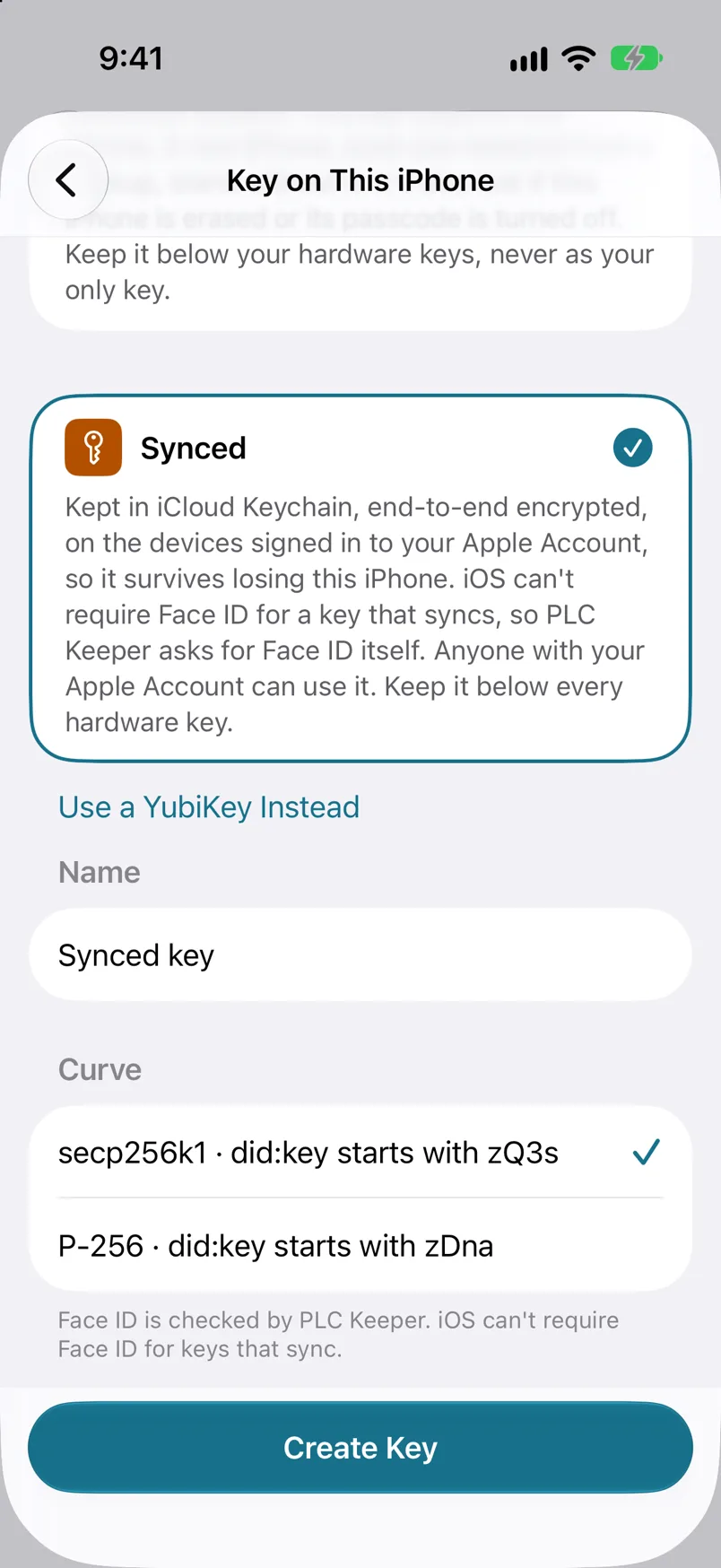
Step 3: Create the key.
For a key on this iPhone or a synced key, check the name and tap Create Key. A paper key shows you 24 words to write down or print, then asks for four of them to check you have them, and names itself. PLC Keeper then places the new key above your PDS keys; tap Review Change.
-
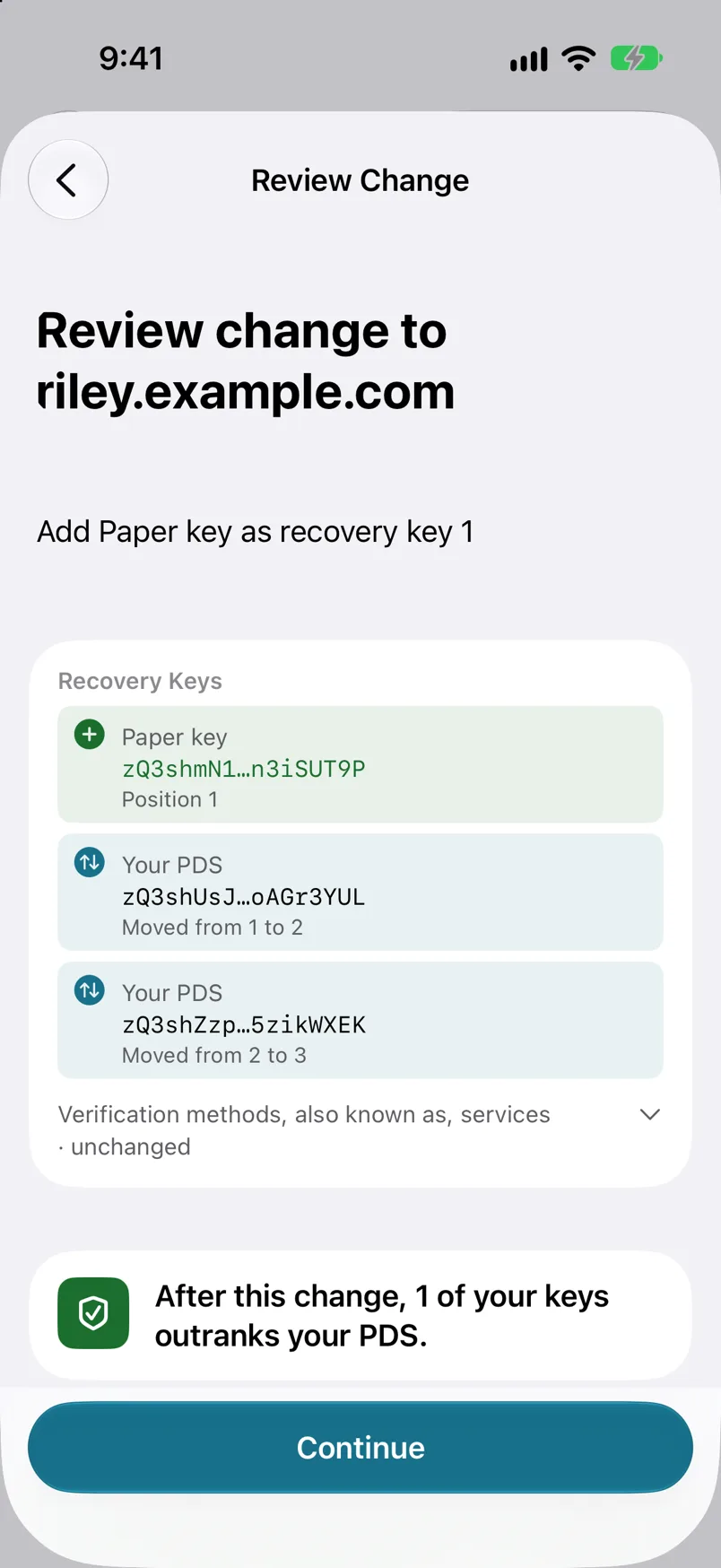
Step 4: Review the change.
PLC Keeper shows your new key at the top of the list, above your PDS keys. Tap Continue.
-
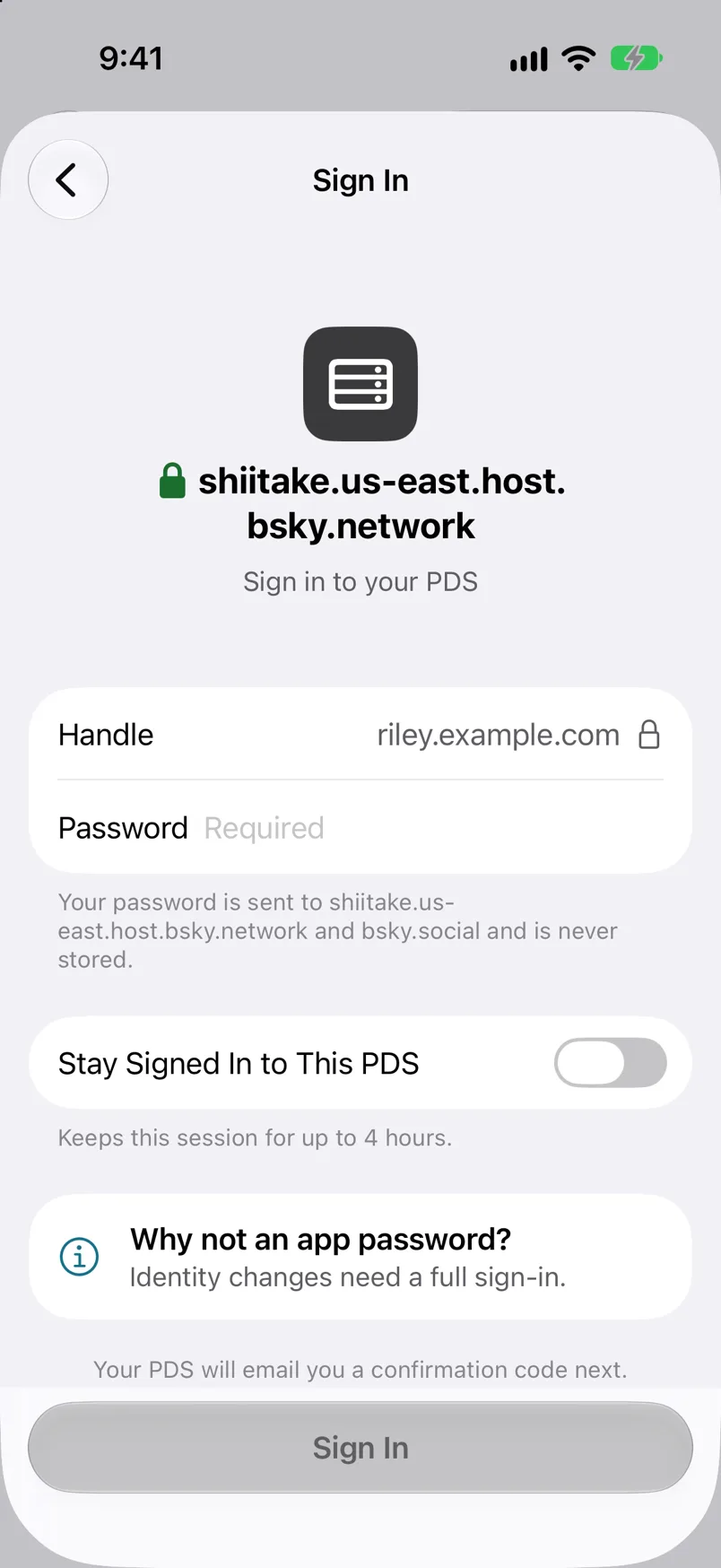
Step 5: Sign in to your PDS.
Your PDS holds the current keys, so it has to approve this change. On Choose a Signing Key, leave Your PDS selected and tap Sign, then sign in with your account password.
-
Step 6: Enter the code from your email, then tap Sign and Submit.
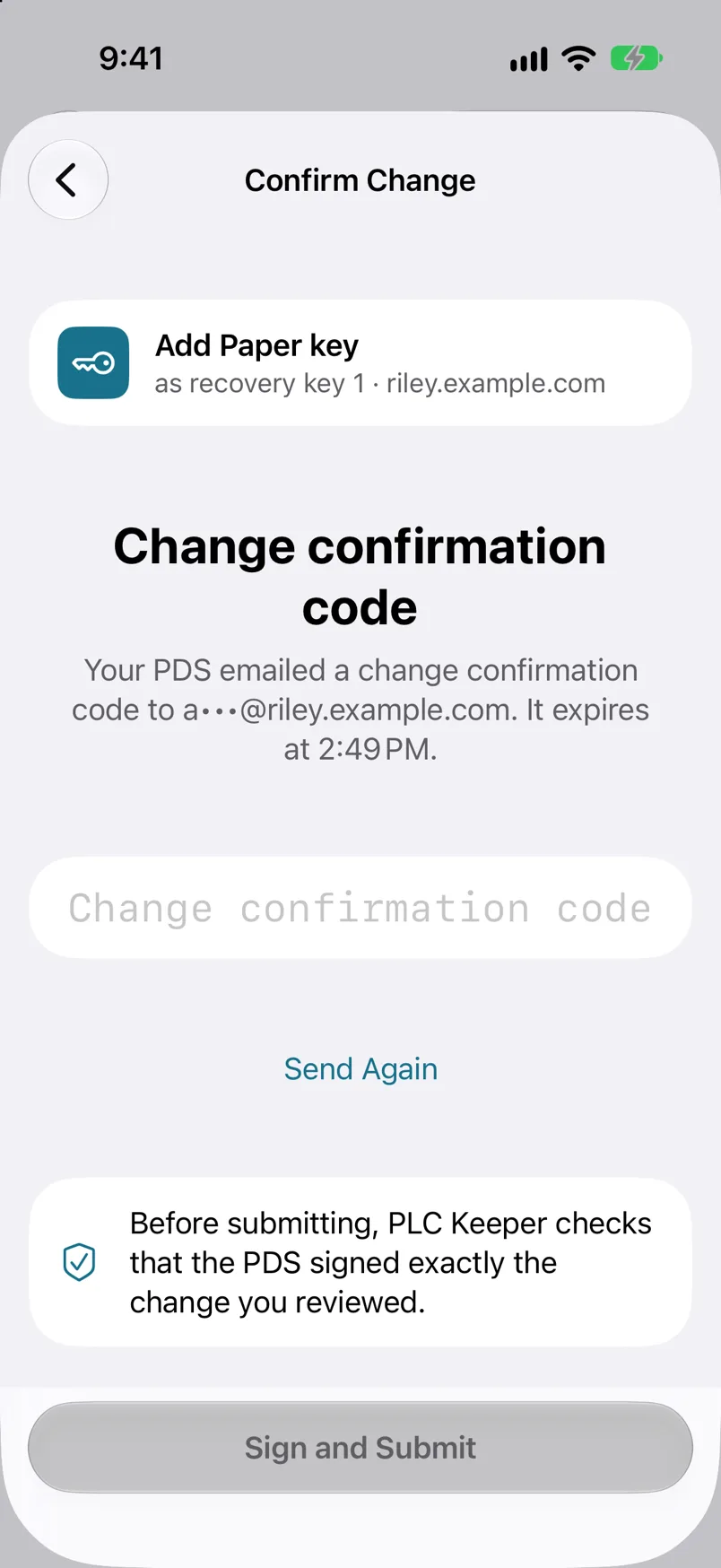
Paper key
A paper key is 24 words. Write them down or print them, and store them where you’d keep a passport. Anyone who has these words can change your identity, so never photograph them or save them in a notes app.
It worked if
The new key is listed above your PDS on the identity’s screen.